You may need to check the logs when creating a VRChat world or hosting an event. Here’s an easy way to check the latest logs!
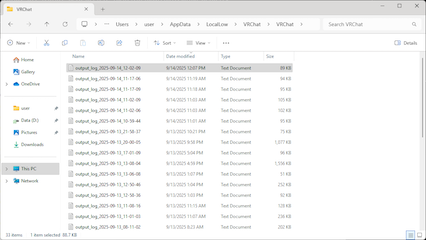
Checking VRChat logs can be tricky. First of all, I don’t even know where it is… C:\Users\user\AppData... Where even is it…?
It’s located at C:\Users\user\AppData\LocalLow\VRChat\VRChat, but it’s impossible to remember that path! The official documentation briefly mentions this below ⬇️
“2. View Logs in a Text Editor”
https://creators.vrchat.com/worlds/udon/debugging-udon-projects/#2-view-logs-in-a-text-editor
Once you’ve found the log file, you have to scroll endlessly to reach the most recent section!
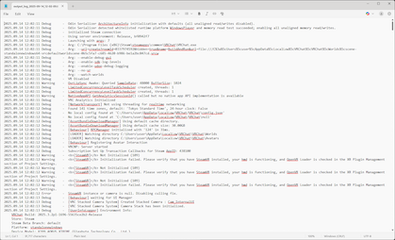
If you’re in this situation, I recommend the following method. It’s simple–just 2 steps–and it uses a black screen, but don’t worry, it’s not scary!
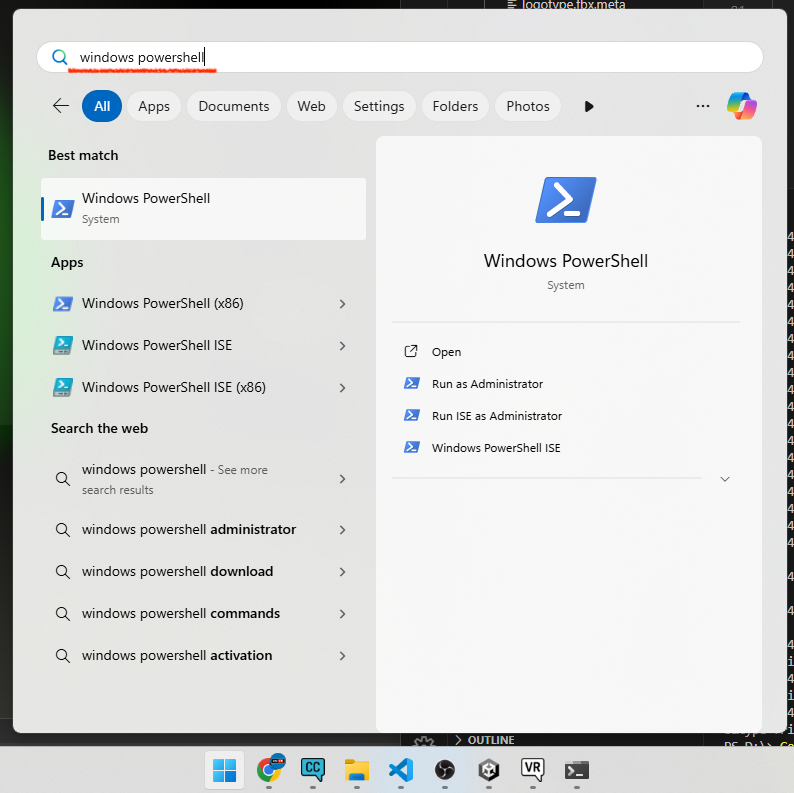
Step 1: Press the Windows key, type windows powershell, and press enter!
Step 2: When the black screen opens, paste the command ⬇️ and press Enter again!
Get-ChildItem -Path "$env:APPDATA\..\LocalLow\VRChat\VRChat\output_log_*.txt" -File | Sort-Object LastWriteTime -Descending | Select-Object -First 1 | Get-Content -Tail 10 -Wait
The latest logs will appear like this. Press Ctrl + C to stop it.
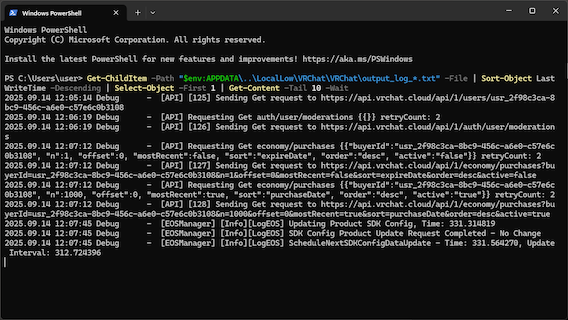
To put it simply, the process is as follows:
$env:APPDATA\..\LocalLow\VRChat\VRChatrefers toC:\Users\user\AppData\LocalLow\VRChat\VRChat- Use
Get-ChildItemto obtainoutput_log_(something).txtfrom(1) Sort-Objectsorts the files by last write date and timeSelect-Objectretrieves the first file- Retrieve the content with
Get-Content.
When you restart VRChat, the log file name changes, so press Ctrl + C to stop it, then paste the snippet again and press Enter. Also, be careful not to accidentally post log contents on X or your blog, as they may contain private information!
Let’s enjoy this game!
ℹ️ component versions:
VRChat SDK - Base: 3.8.2
VRChat SDK - Worlds: 3.8.2
Unity version: 2022.3.22f1