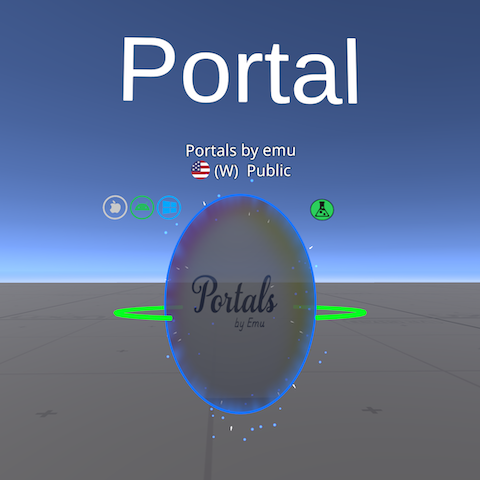
There are many amazing worlds available on VRChat. You might want to place a “portal” in your own world to access them. Here’s how you can do it!
For more details, refer to the official documentation below: ⬇️
VRC Portal Marker
https://creators.vrchat.com/worlds/components/vrc_portalmarker/
This tutorial assumes that the Unity project for your VRChat world is already open. If you’re creating a world for the first time, please refer to my previous article.
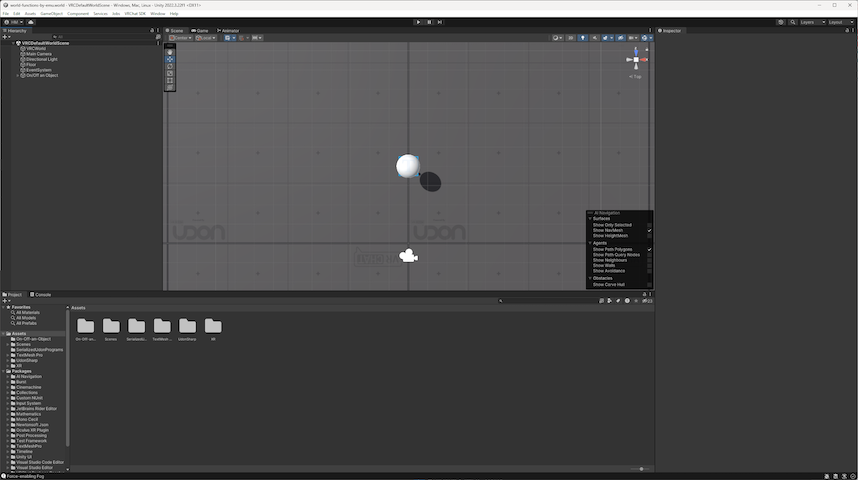
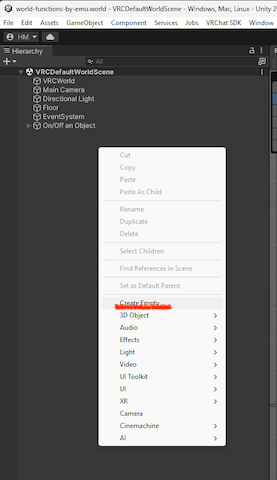
First, right-click in the Hierarchy and select “Create Empty” to create an object that will contain the portal.
Next, click “All Prefabs” at the top left of the Project window, and type “portal” in the search field on the right.
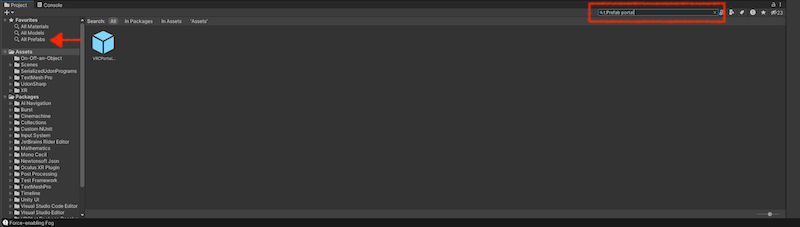
You should now see the file VRCPortalMarker.prefab in the results.
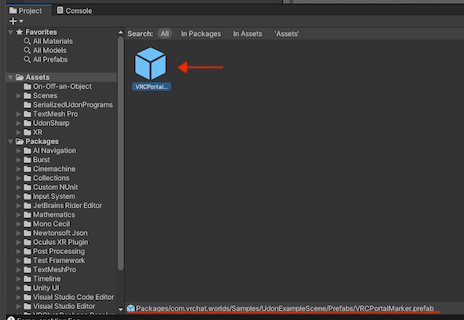
Drag and drop VRCPortalMarker.prefab into the object you just created in the Hierarchy. The portal should now appear in your world.
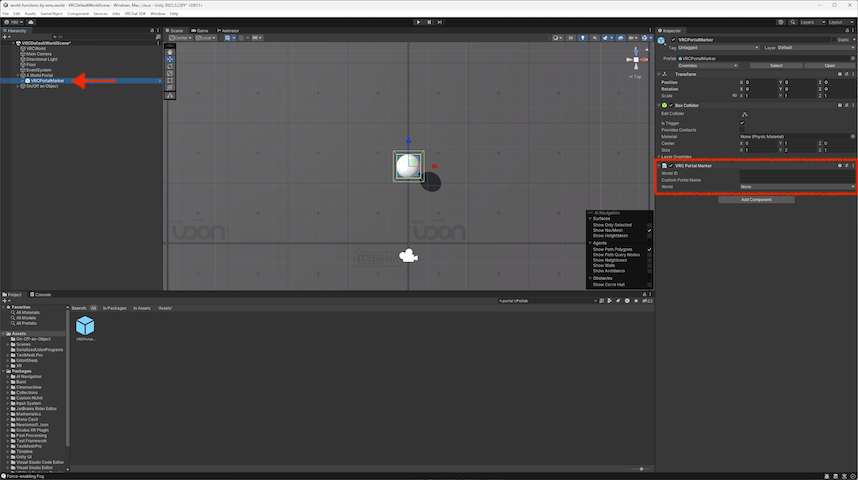
Next, specify which world the portal should link to.
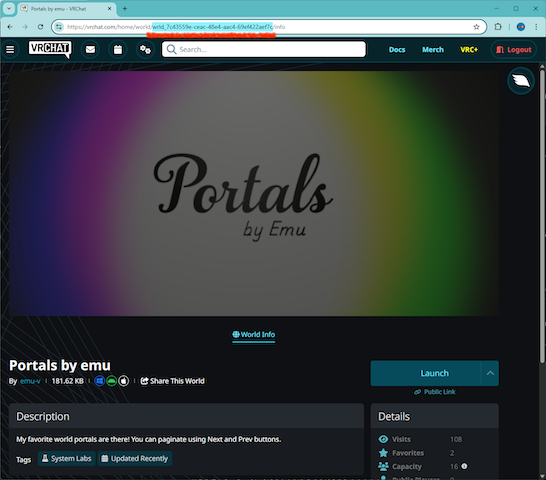
First, open the World Info page of the world you want to link to in your browser. For example, if you want to link to a world I published previously, open the following link! ;)
“Portals by emu”
https://vrchat.com/home/world/wrld_7c43559e-ceac-48e4-aac4-69ef422aef7c/info
Once the World Info page opens, copy the world ID from the URL in your browser’s address bar. The world ID is the part of the URL that starts with wrld_ to ends right before the / sign; for example, wrld_7c43559e-ceac-48e4-aac4-69ef422aef7c.
Return to Unity, and paste the copied world ID into the World ID field of the World Portal Marker component in the Inspector on the right.
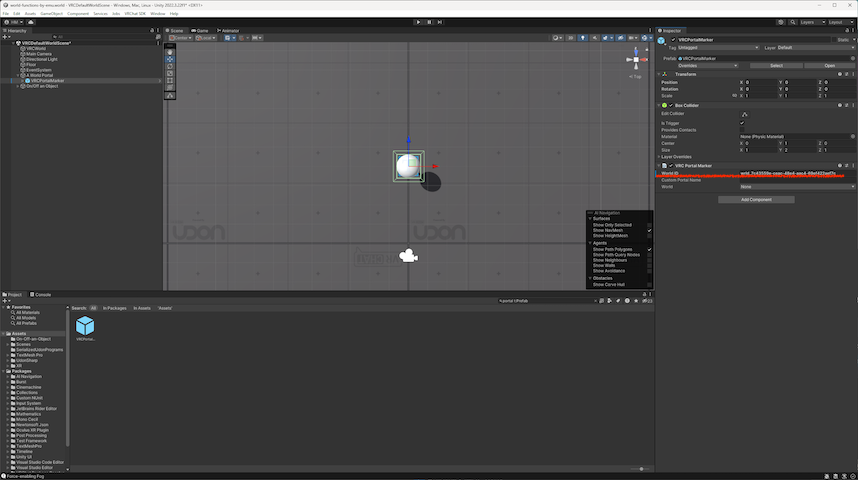

You’ve now successfully placed a portal in your world. Give it a try!