What’s one item you want in a VRChat world? Yes, a mirror 🪞, right? Here’s how you can place a mirror to your world!
For more details, refer to the official documentation below: ⬇️
VRCMirror
https://creators.vrchat.com/worlds/sdk-prefabs#vrcmirror
This tutorial assumes that the Unity project for your VRChat world is already open. If you’re creating a world for the first time, please refer to my previous article!
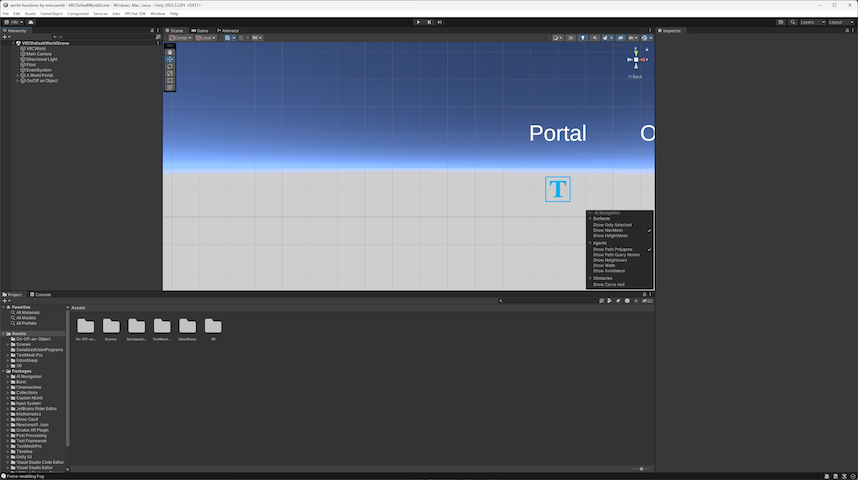
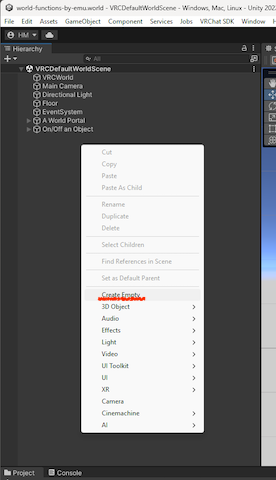
First, right-click in the Hierarchy and select “Create Empty to create an object that will contain the mirror.
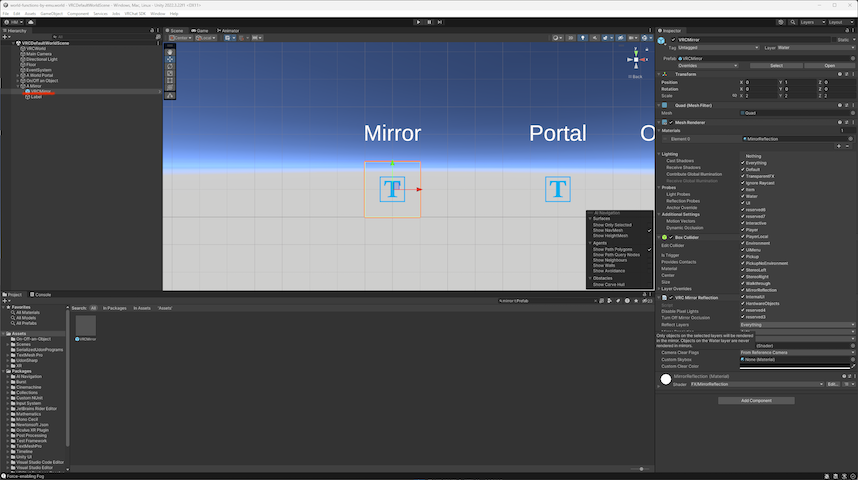
Next, click “All Prefabs” in the top left of Project window, and type “mirror” in the search field on the right. You should now see the file VRCMirror.prefab in the results.

Drag and drop VRCMirror.prefab into the object you just created in the Hierarchy. The mirror should now appear in your world. Adjust its position and size to work as a mirror. Changeing the aspect ratio will not affect the reflected image, so you can change it to any size you like.
However, if you set it like this, Launch Pad and expression menu will also be reflected. You can adjust this by selecting the layers. The discussion about layers is long, so I’ll save that for another time!
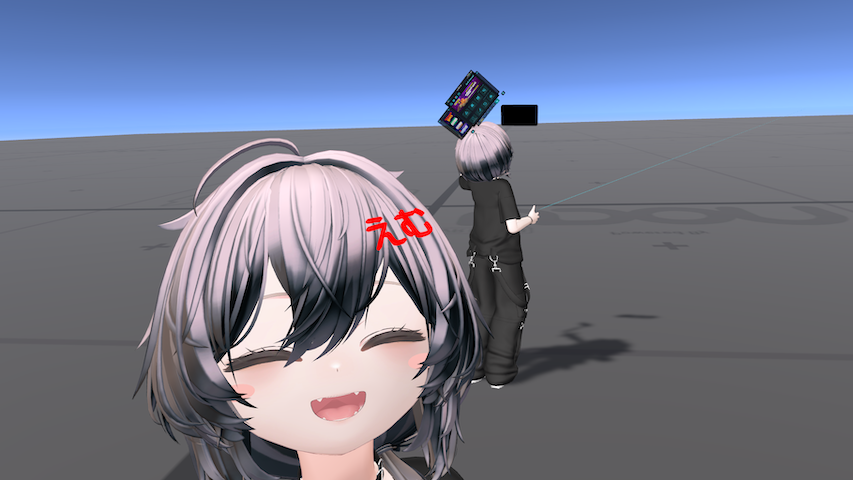
You’ve now successfully placed a mirror in your world. Give it a try!
ℹ️ component versions:
VRChat SDK - Base: 3.8.2
VRChat SDK - Worlds: 3.8.2
Unity version: 2022.3.22f1