When creating a VRChat world, you might want to toggle the visibility of objects such as mirrors, right? Here’s how you can do it! It uses Udon#, but it’s easy to follow, so give it a try!
I’ll start explaining from the point where you open the Unity project for your VRChat world. If you’re wondering how to create a world, please read the article on world creation!
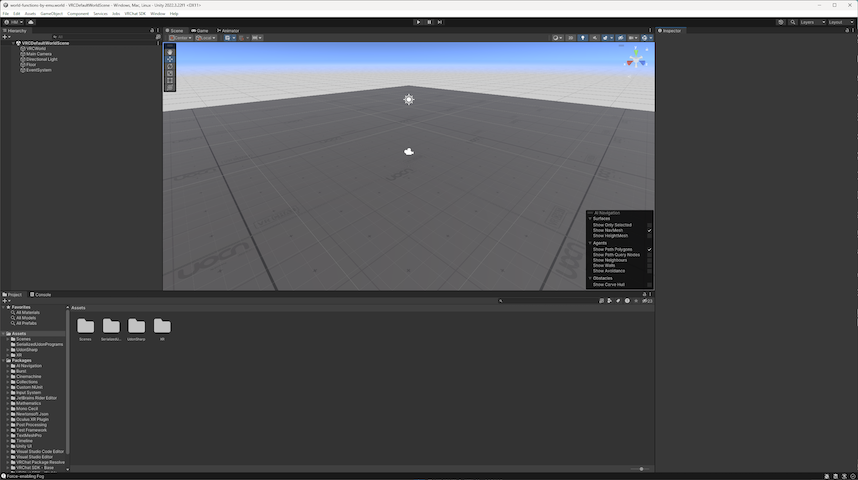
First, let’s create an object to turn on or off and another object to use as a switch.
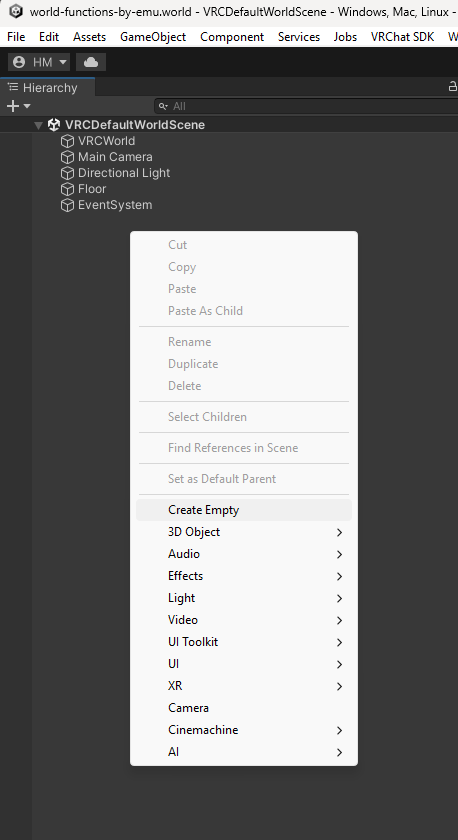
Right-click in the Scene in the Hierarchy and select Create Empty to create an empty GameObject. You’ll create objects, such as a switch, inside this.
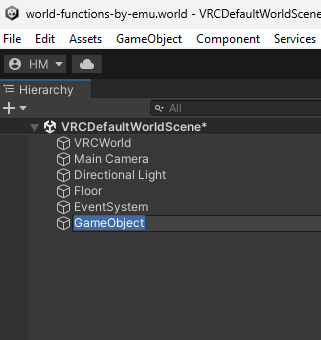
Change the name of the empty object you created from GameObject to a more descriptive one.
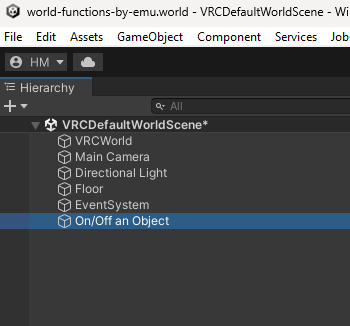
Here, set it to On/Off an Object.
Next, to create the object to turn on or off, right-click On/Off an Object and select Sphere from 3D Object menu.
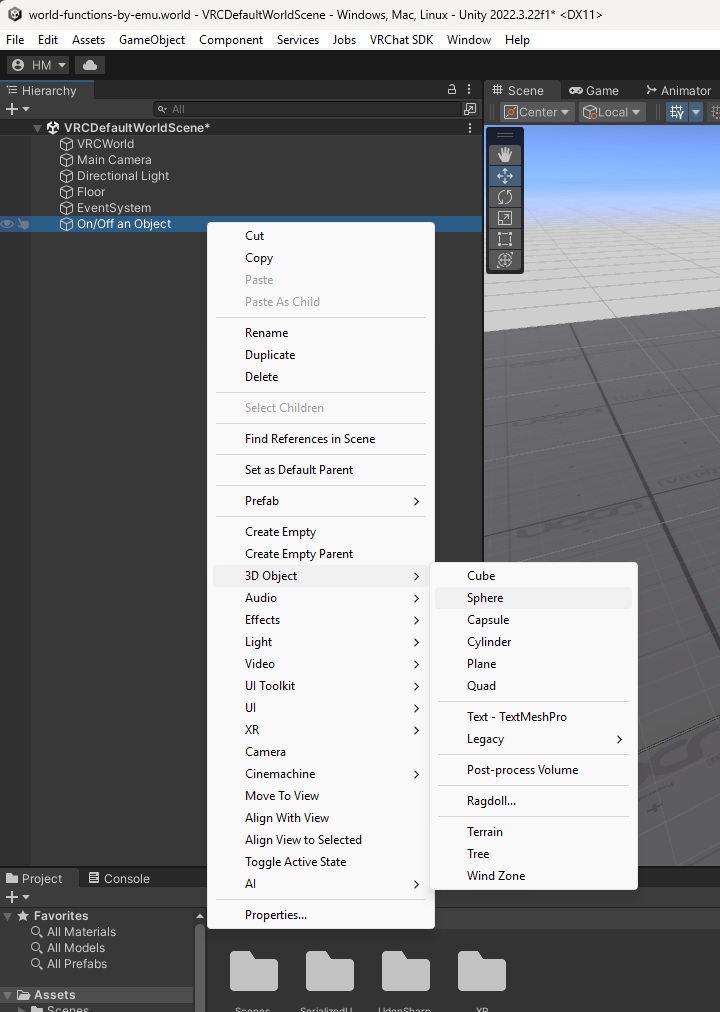
Similarly, to create an object to use as a switch, select Cube from 3D Object menu.
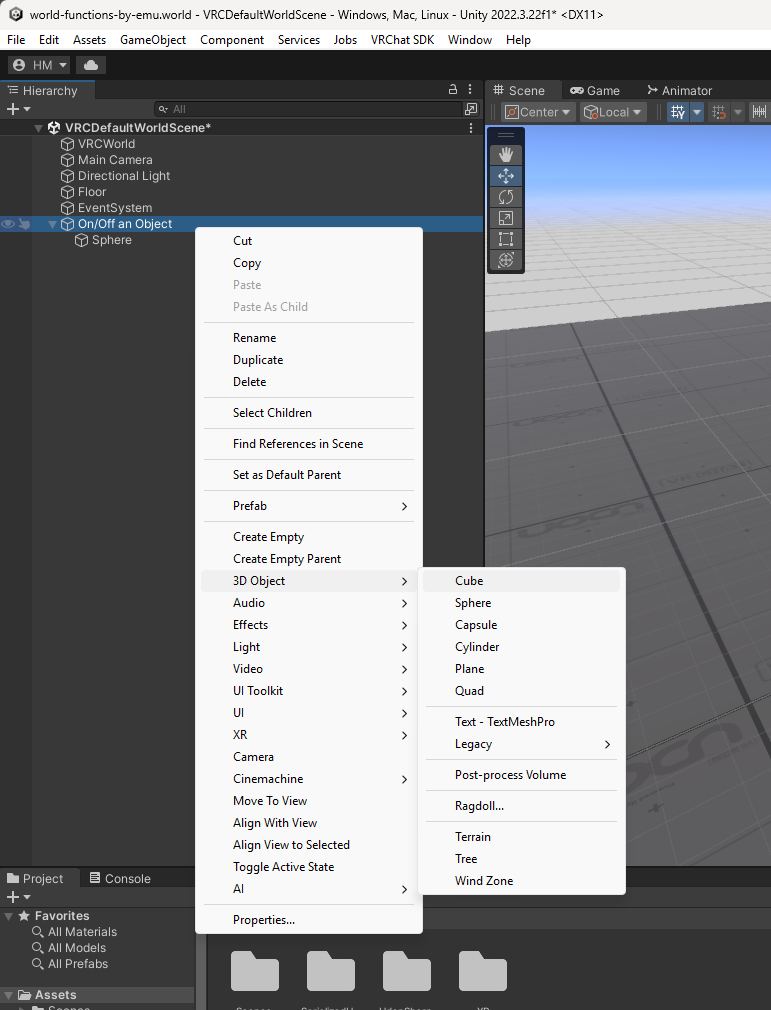
Arrange the Sphere and the Cube to make them easier to see.
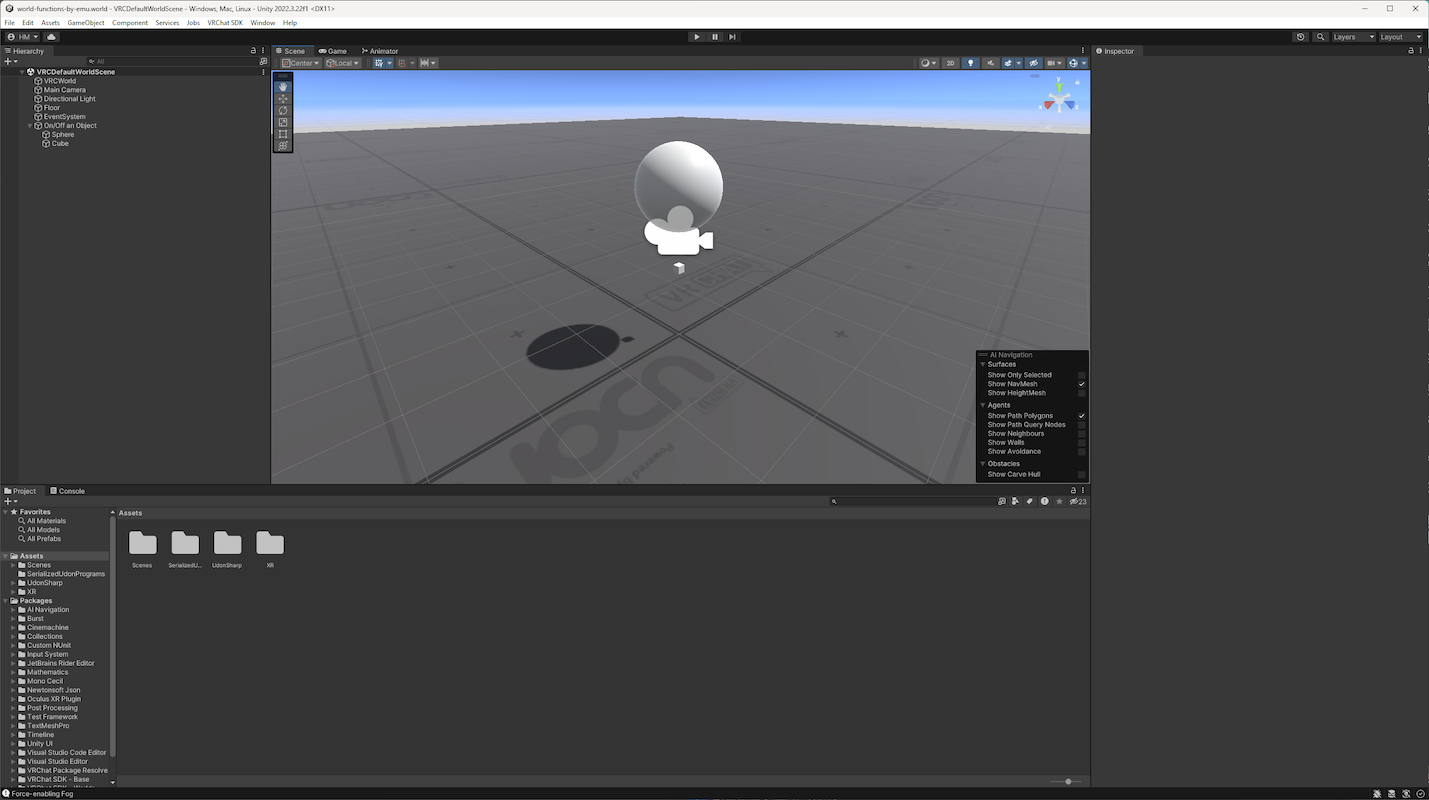
Next, create the contents of the switch.
First, right-click Assets in the Project window and select Folder to create a place to store the program you’ll write.
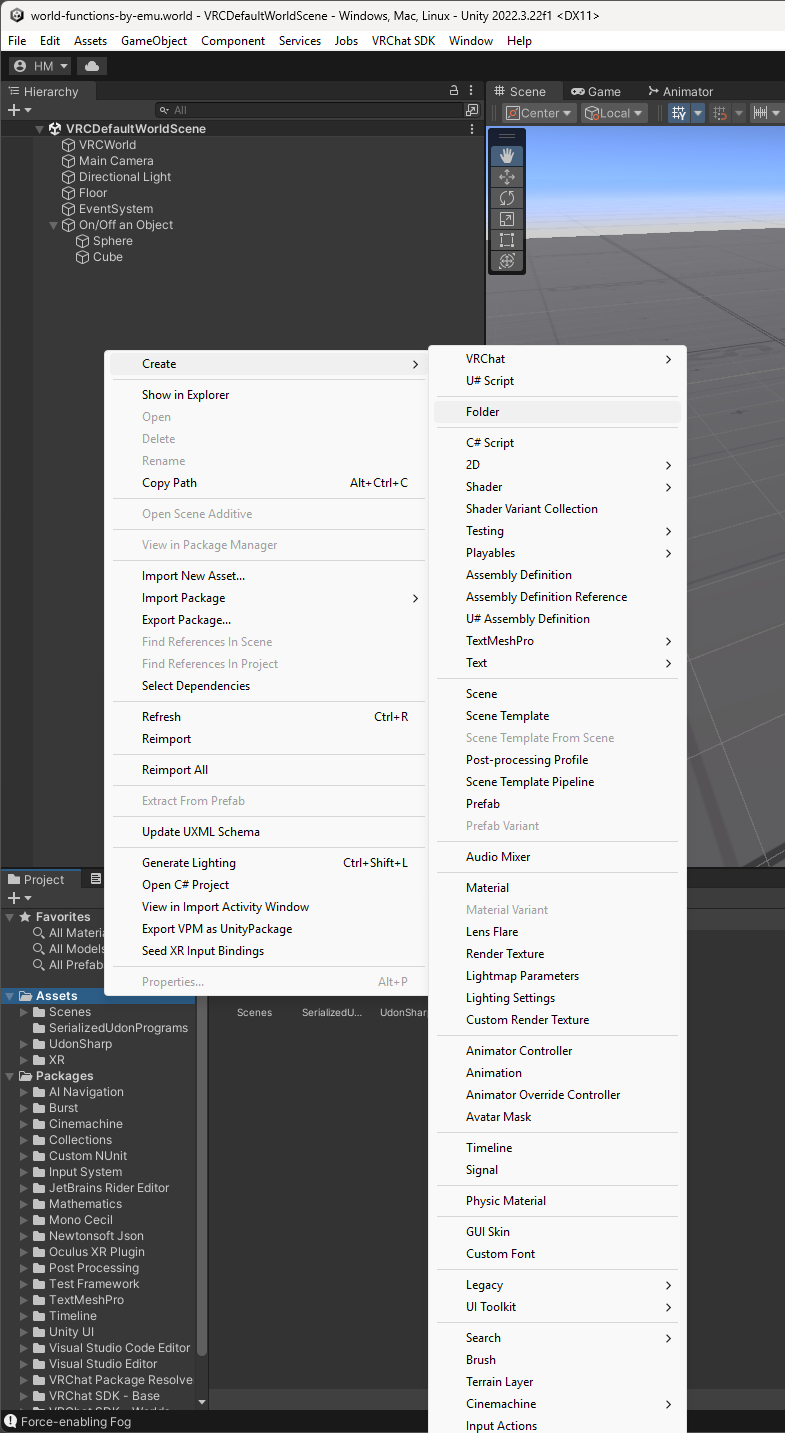
Change the folder name to something meaningful. Named it On-Off-an-Object.
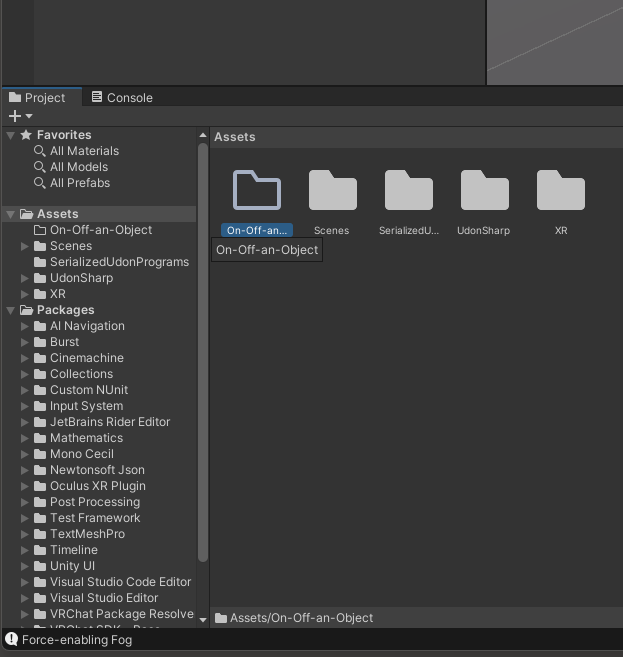
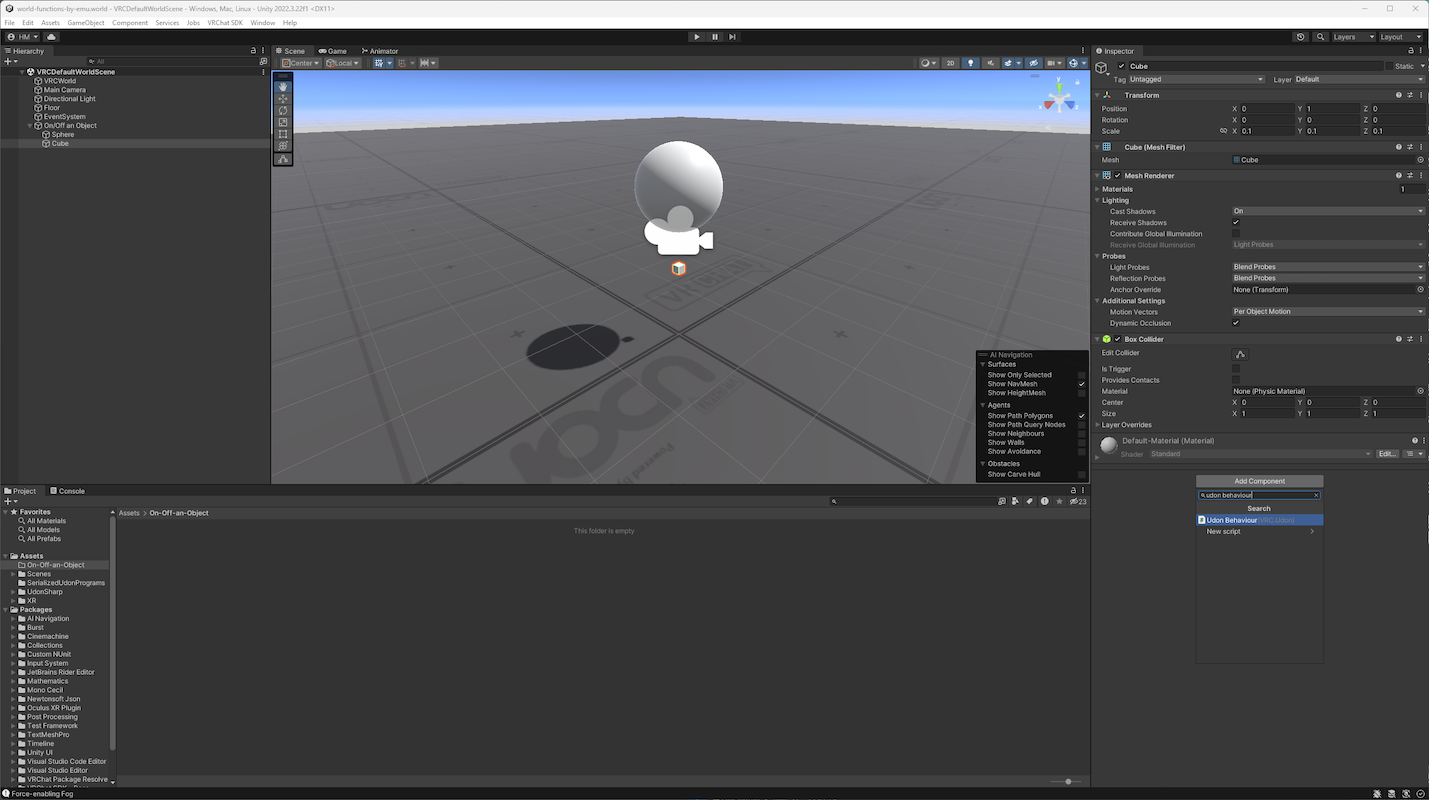
Next, to link the program to the Cube used as a switch, select the Cube in the Hierarchy and click the Add Component button in the Inspector on the right side of your Unity screen.
Type “udon behaviour” in the search field, and select Udon Behaviour when it appears.
The Udon Behaviour (Script) component is added, so click the New Program button in the component.
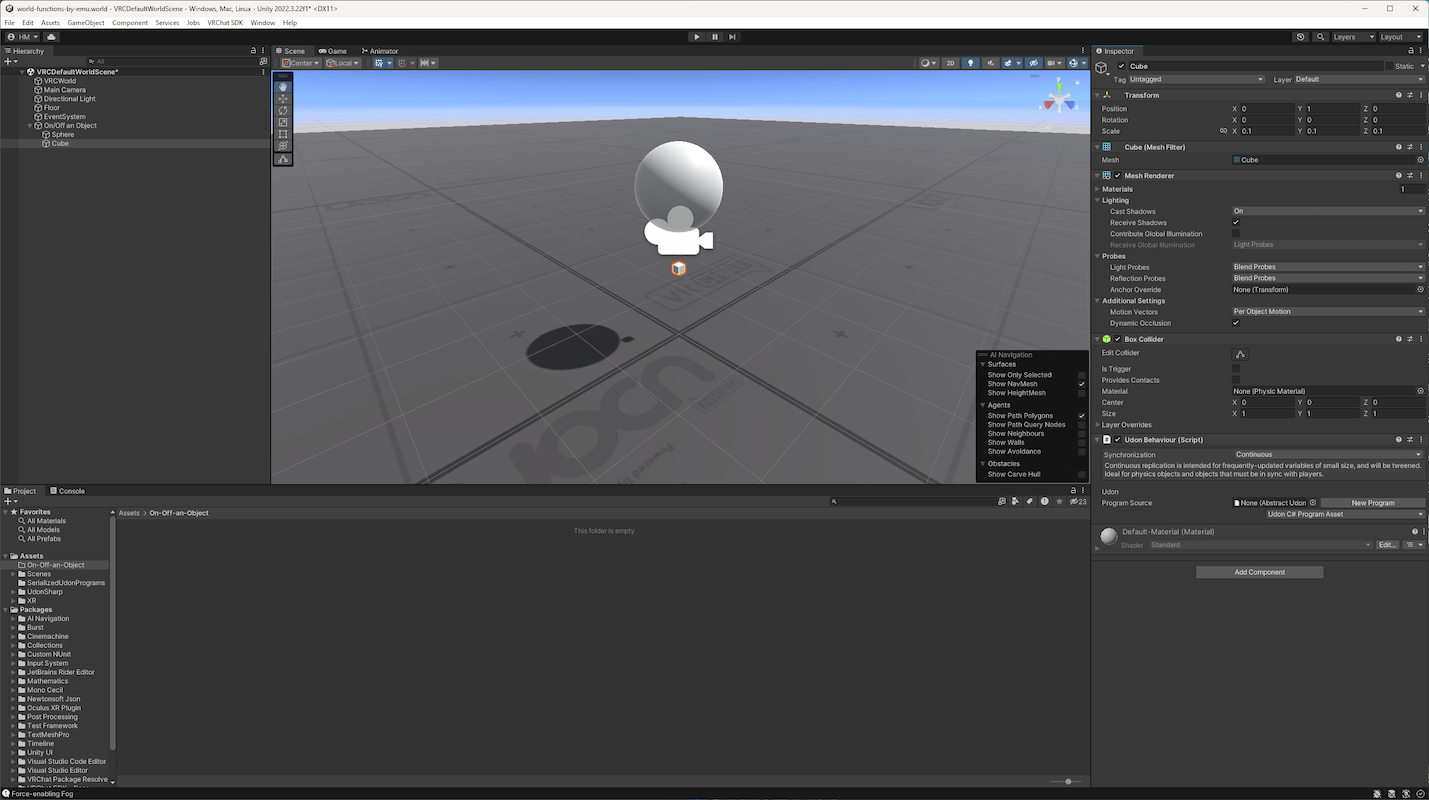
The display will then change as shown below ⬇️, so click the Create Script button.
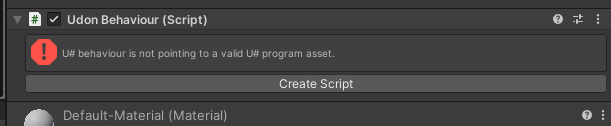
Clicking the Create Script button opens an Explorer window asking where to save the script and what file name to use.
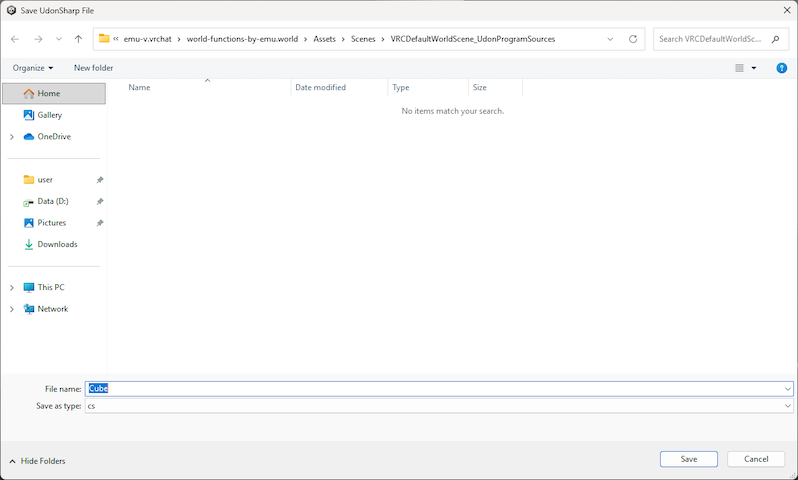
In this case, select the folder you created earlier, On-Off-an-Object, and name the file OnOffSwitch.
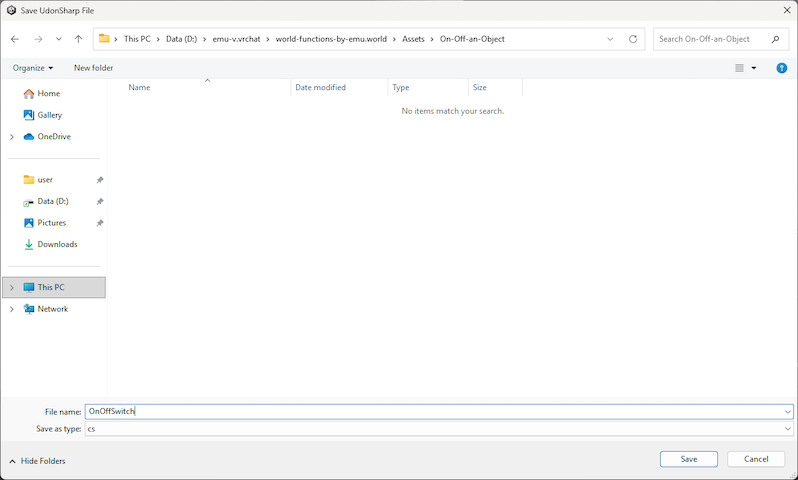
Once you’ve done this, your component looks like this ⬇️
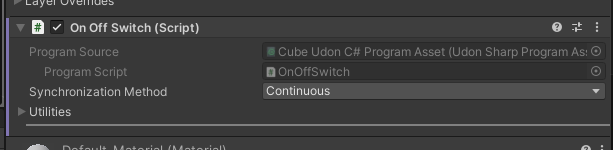
In the Unity Project window, navigate to the folder where the script file was generated, right-click it, and select Show in Explorer.
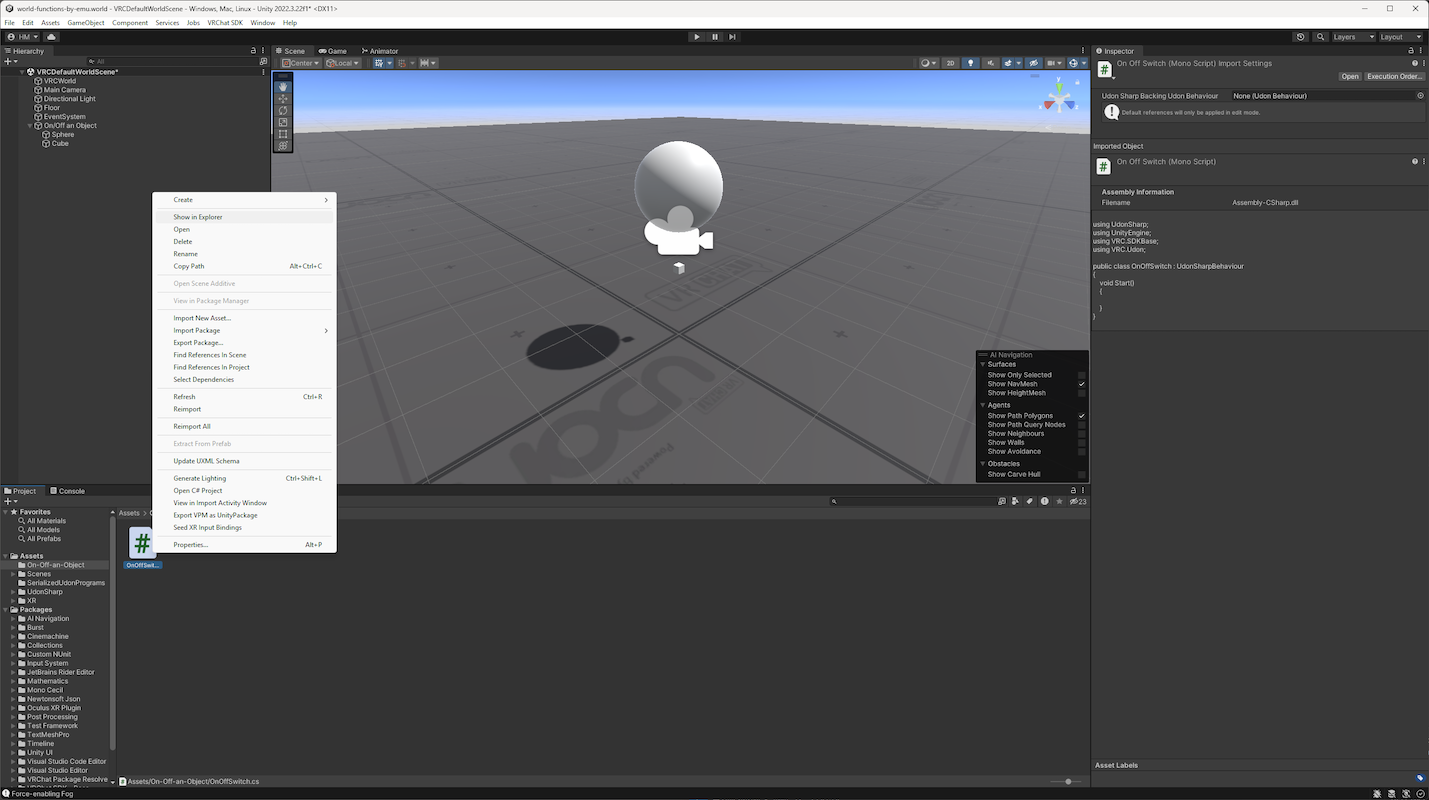
If you open the script file in Notepad, you’ll see source code like this ⬇️
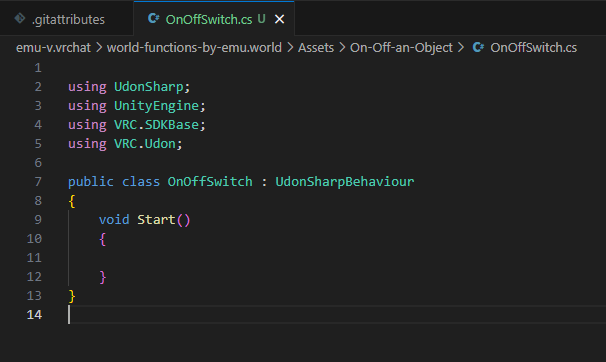
using UdonSharp;
using UnityEngine;
using VRC.SDKBase;
using VRC.Udon;

public class OnOffSwitch : UdonSharpBehaviour
{
    void Start()
    {

    }
}
Add the following lines ⬇️ to this source code, then save it.
using UdonSharp;
using UnityEngine;
using VRC.SDKBase;
using VRC.Udon;

public class OnOffSwitch : UdonSharpBehaviour
{
    [SerializeField] private GameObject targetObject;

    void Start()
    {

    }

    public override void Interact()
    {
        if (targetObject.activeSelf)
        {
            targetObject.SetActive(false);
        }
        else
        {
            targetObject.SetActive(true);
        }
    }
}
Save the script file, then return to Unity to run the build.
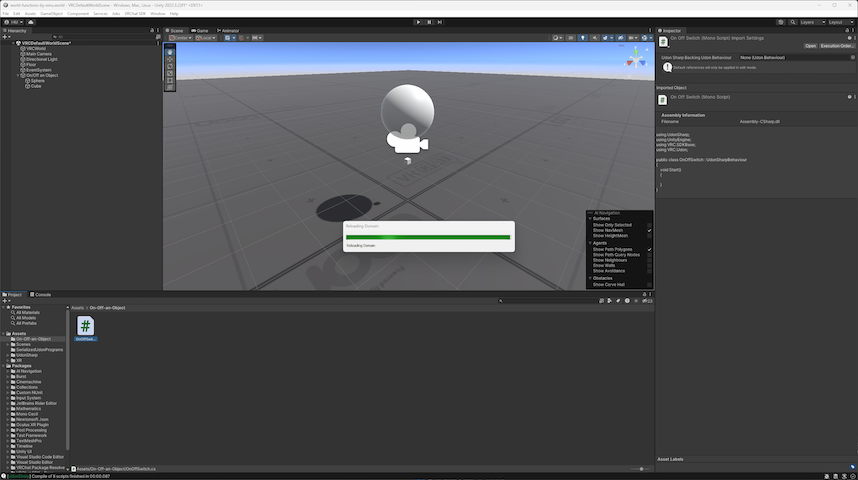
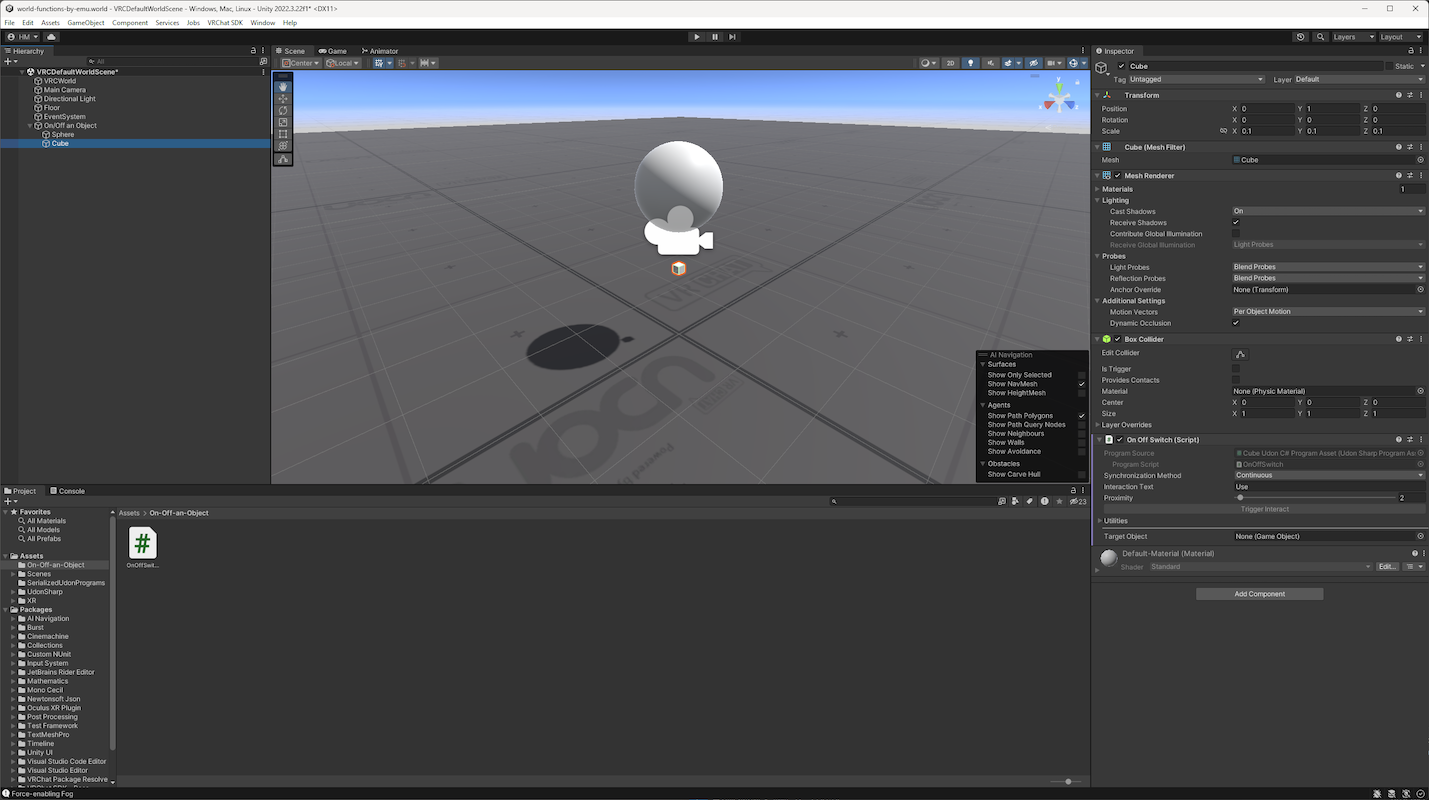
When the build is complete, a new item called Target Object appears in the Cube’s On Off Switch (Script) component. Drag and drop the Sphere into it.
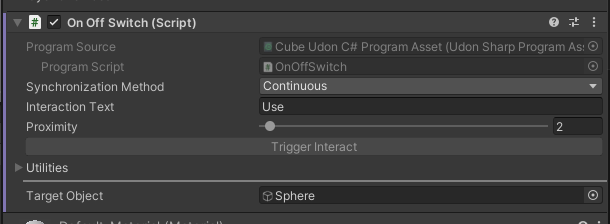
The Sphere is set as shown below ⬇️
That’s it! 🎉
If you have time, rename the Sphere and the Cube to make them easier to identify.
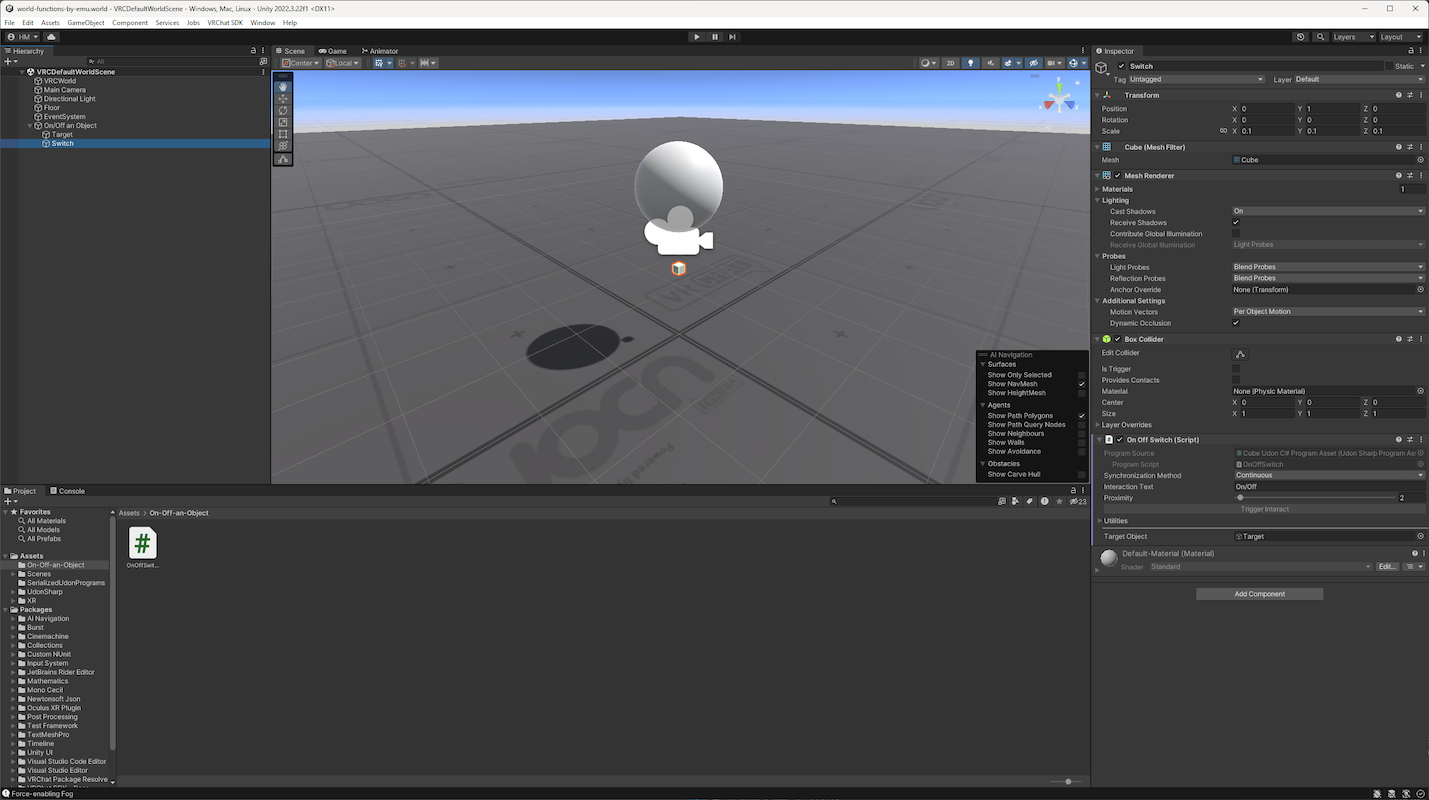
Try uploading it and running it locally to check how it works.
Example World
I’ve uploaded this “Turning the Sphere On/Off” example as a world. If you’d like to see it in action, please visit it!
World Functions by emu
https://vrchat.com/home/world/wrld_b798ad7b-8781-49e2-9ef1-aa6caedd3cca/info
Source Code Explanation
public class OnOffSwitch : UdonSharpBehaviour
{
    // Variable for setting the target object to turn on or off
    [SerializeField] private GameObject targetObject;

    void Start()
    {

    }

    // Procedure executed when the Cube is "Used" in VRChat
    public override void Interact()
    {
        // Branches based on the Sphere's on/off state
        if (targetObject.activeSelf)
        {
            // Executed when the Sphere is on

            // Turn off the Sphere
            targetObject.SetActive(false);
        }
        else
        {
            // Executed when the Sphere is off

            // Turn on the Sphere
            targetObject.SetActive(true);
        }
    }
}
Enjoy the game!
ℹ️ component versions:
VRChat SDK - Base: 3.8.2
VRChat SDK - Worlds: 3.8.2
Unity version: 2022.3.22f1