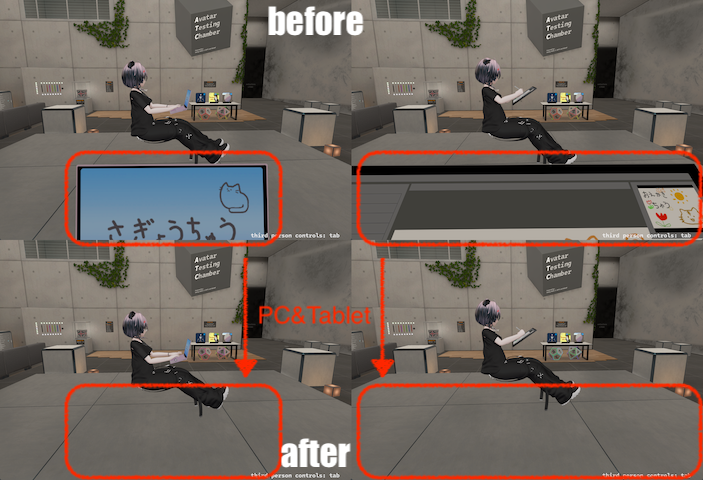
Have you ever felt like your avatar is bored and a little lonely, even though you’re actually using a PC or LCD tablet when you’re working on VRChat?
If so, I recommend the “Fluffy PC Working Motion” 🧑💻 and the “Drawing Anywhere Motion” 🎨 ❗ ✨
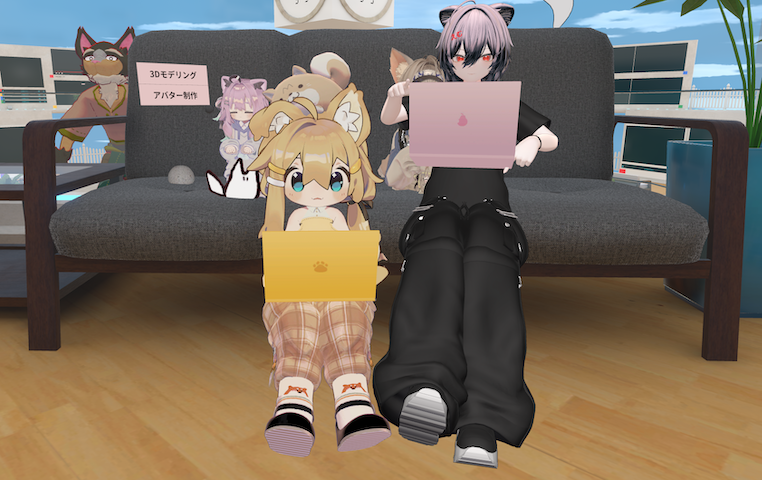
Installing those motions into your avatar project enables you to select motions, such as typing on a PC or drawing on an LCD tablet, from your expression menu. K1e, the motions author, has also published introductory videos on YouTube, so be sure to check them out!
Click here for the “Fluffy PC Working Motion!”
https://k1emozu2.booth.pm/items/6760177
Click here for the introduction video!
Click here for the “Drawing anywhere Motion!”
https://k1emozu2.booth.pm/items/6857580
Click here for the introduction video!
How can you adjust the “Fluffy PC Working Motion!” to match #Mao3D?
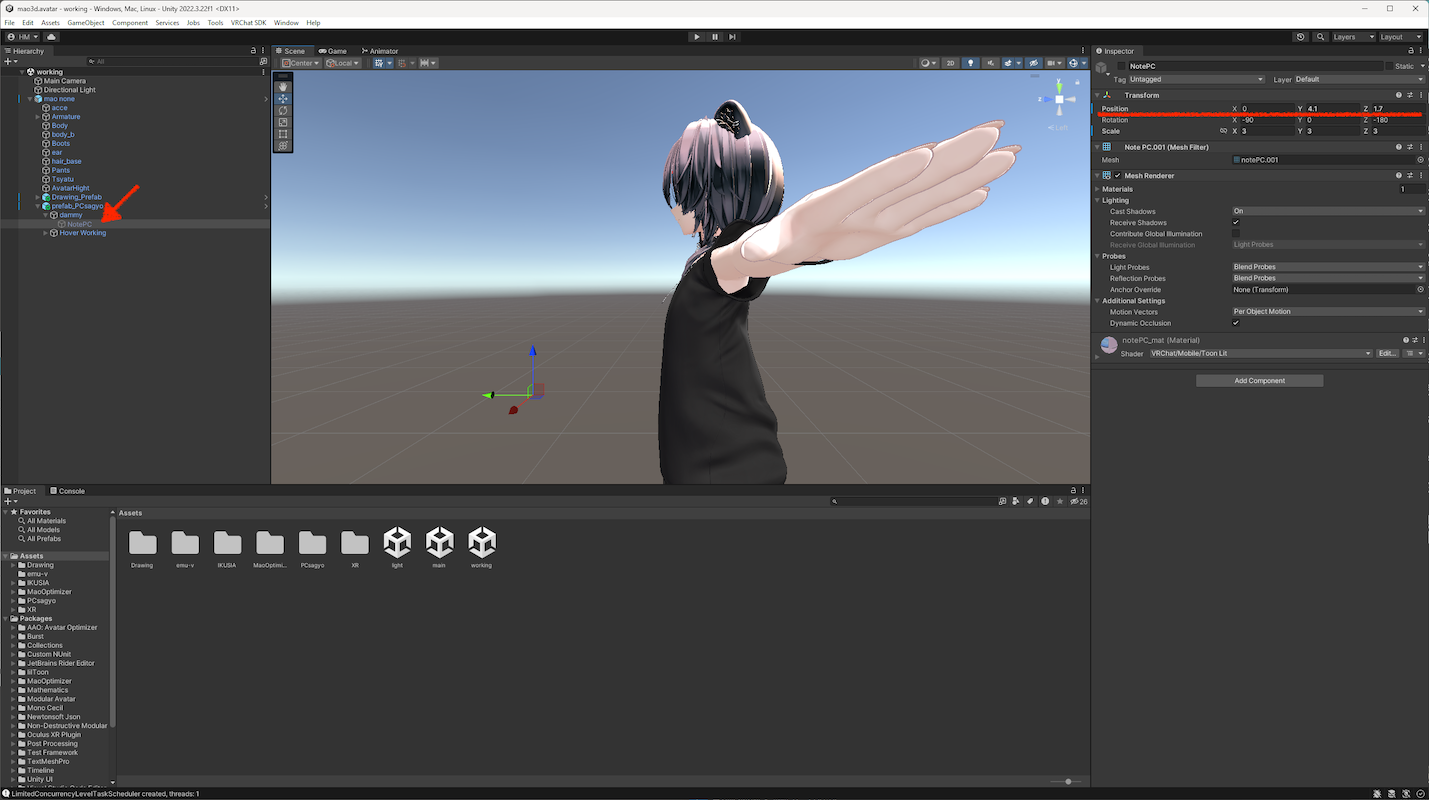
I often use #Mao3D as my avatar during work. The “Drawing Anywhere Motion” comes with settings tailored for #Mao3D, but you’ll need to adjust the “Fluffy PC Working Motion” by yourself. I’ll write down my settings here, so I hope it’ll be helpful for you when you use #Mao3D in the same way.
Mao3D looked much better after I set the position: Y = 4.1, Z = 1.7. I think it looks best if the height is between the stomach and chest, and the distance from the body is about an arm’s length.
| Transform | X | Y | Z |
|---|---|---|---|
| Position | 0 | 4.1 | 1.7 |
How do you hide the PC or tablet from your view?
Just a little tip: Setting up “VRCHeadChop” on Unity allows you to hide your PC or LCD tablet from your field of vision only.
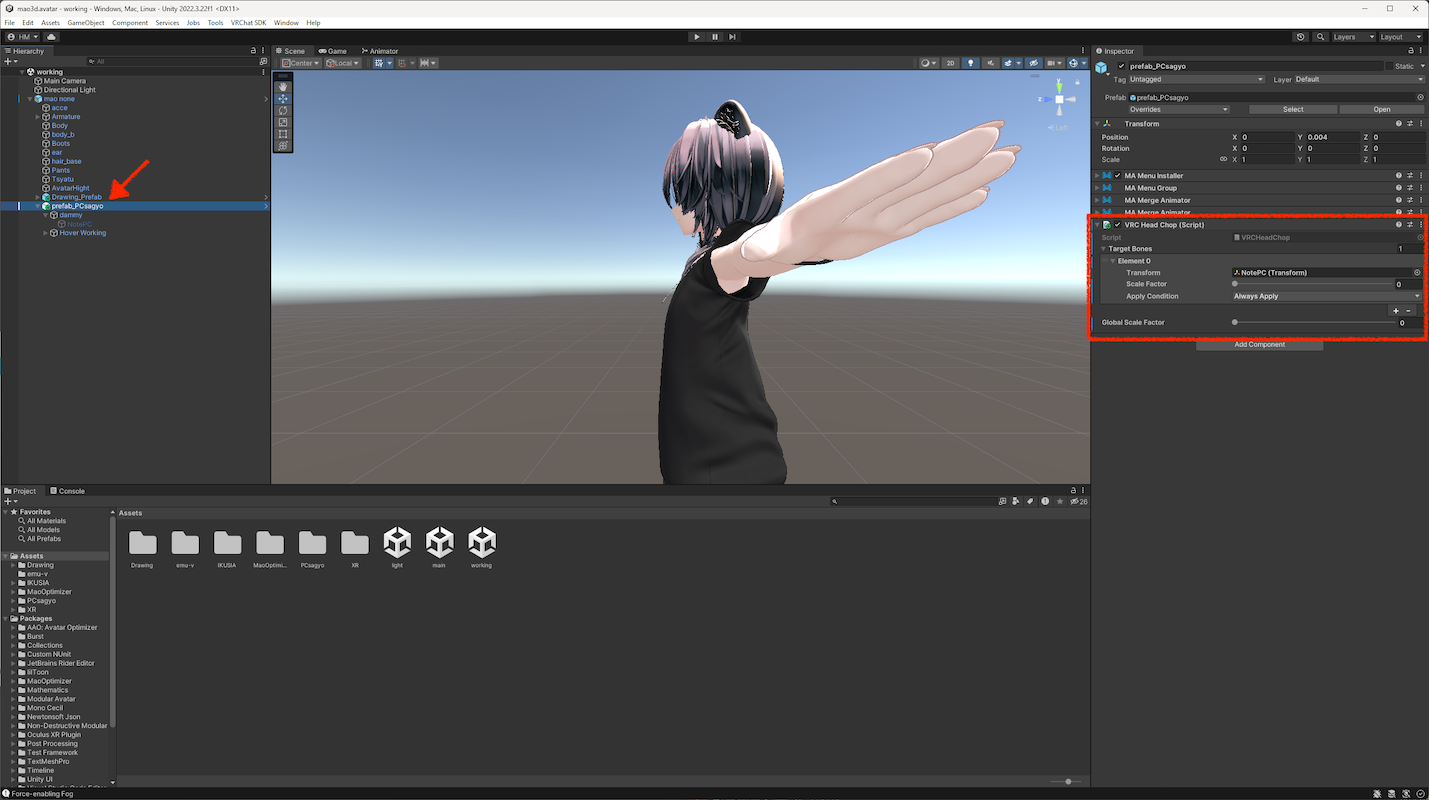
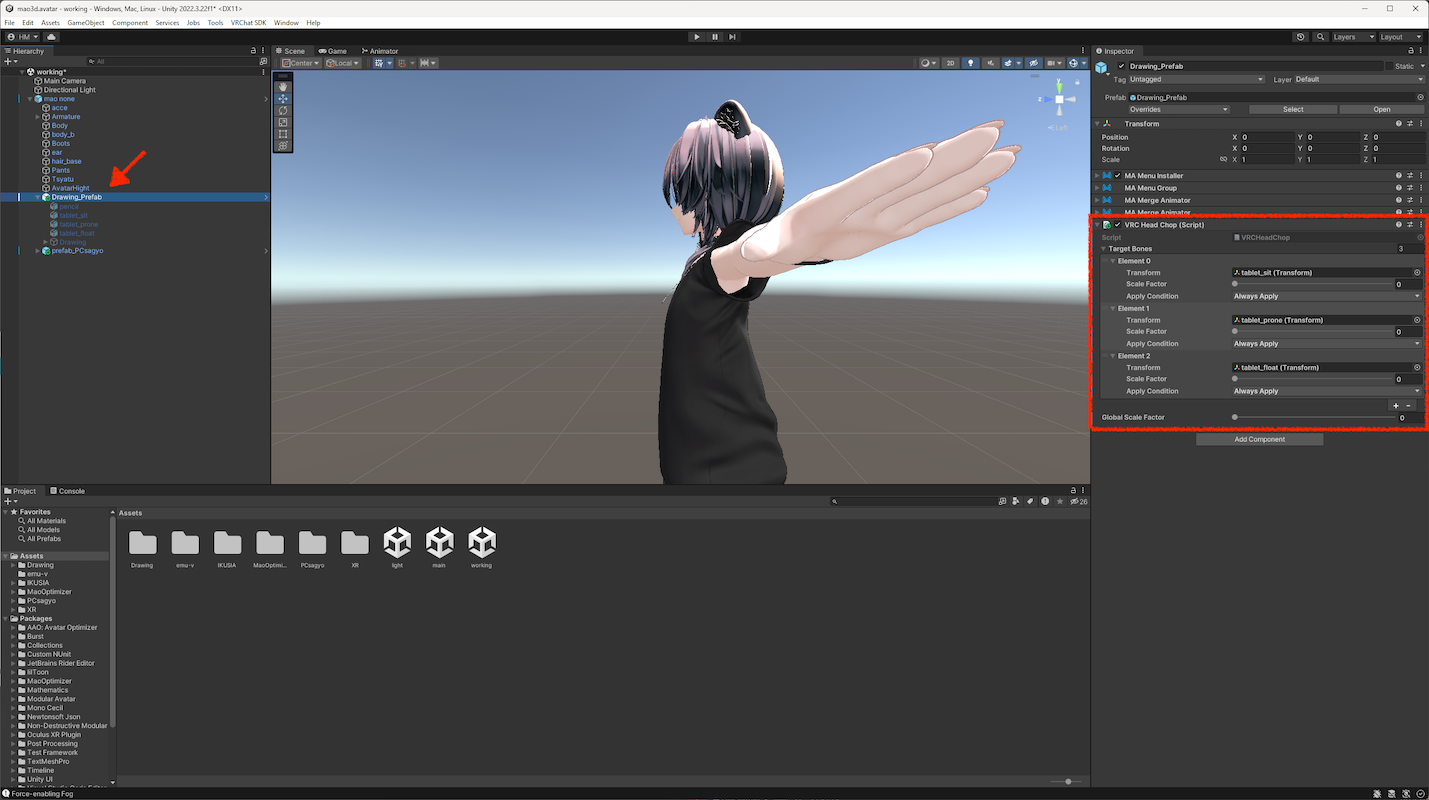
Give this try if you prefer not to have the PC or LCD tablet in your view! Here’s what the setup looks like before and after.